
Doing the work
Add a photo to a step
Take a photo or choose one from your library on a step that asks for one, offline too, and see when it has reached the team.
On this page
Some steps ask for a photo: the empty fridge, the hose and nozzle, the meter reading. A template decides which steps do, and whether the photo is required before the step can be marked done. On the step, the photo card tells you what to show.
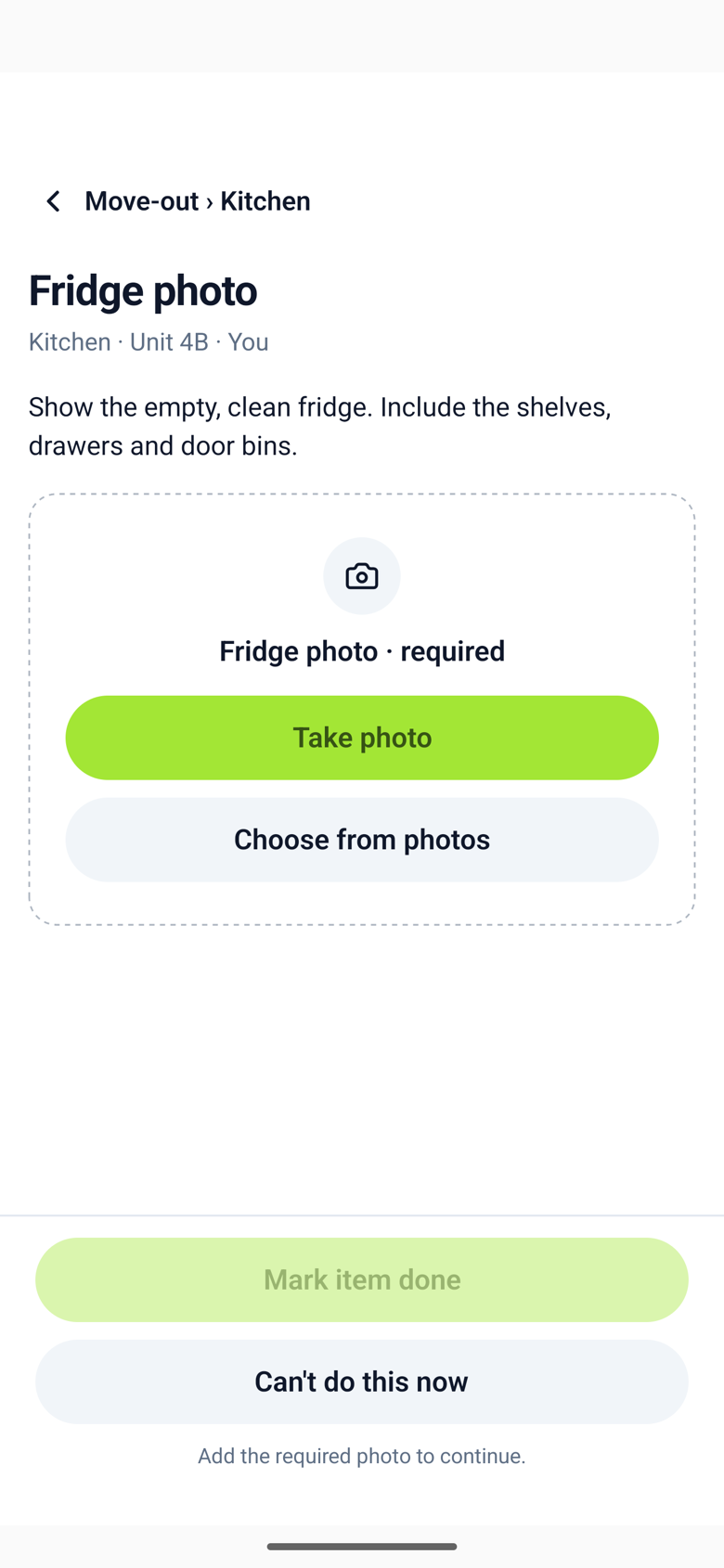
Take or choose a photo
- Open the step and tap Take photo. The first time, your phone asks whether ChecklistSquad may use the camera. Say yes. If you said no earlier, the step offers to open Settings so you can change it.
- To use a photo you already have, tap Choose from photos instead.
- The photo fills the card with your name and the time under it. Tap Retake to replace it, or Remove to take it away. A step can hold up to five photos; the first stays as the main one.
- Tap Mark item done as usual.
In a browser, the same buttons open your computer's camera or a file picker.
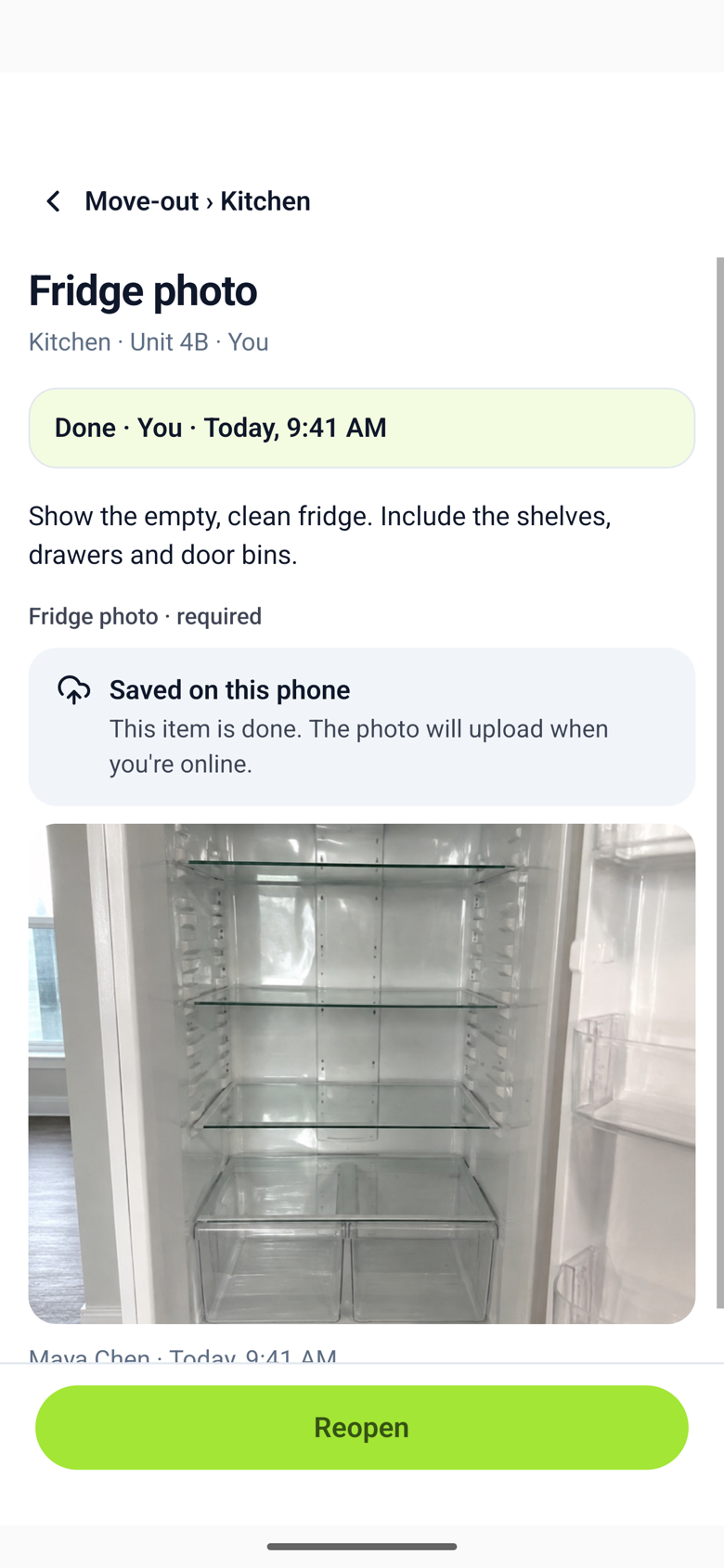
Offline, and what the team sees
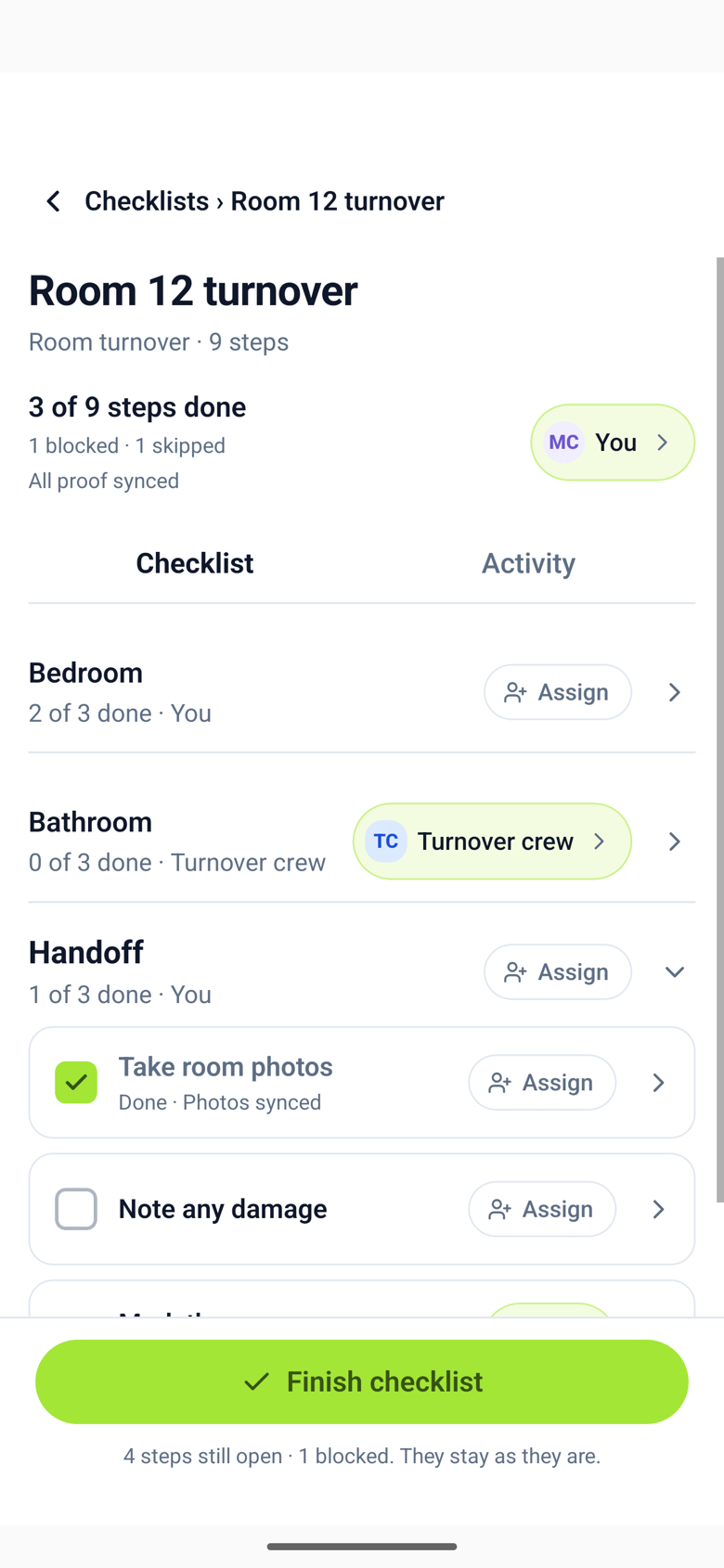
You can mark a step done with the photo still on your phone. The step says Saved on this phone until the photo has uploaded, which happens by itself as soon as you have signal, even if you have left the step. On the checklist, the step reads Photo on this phone until then and Photo synced after.
The rest of the team sees the step as done straight away and the photo once it has synced. Until then they see Photo waiting to sync on that step.
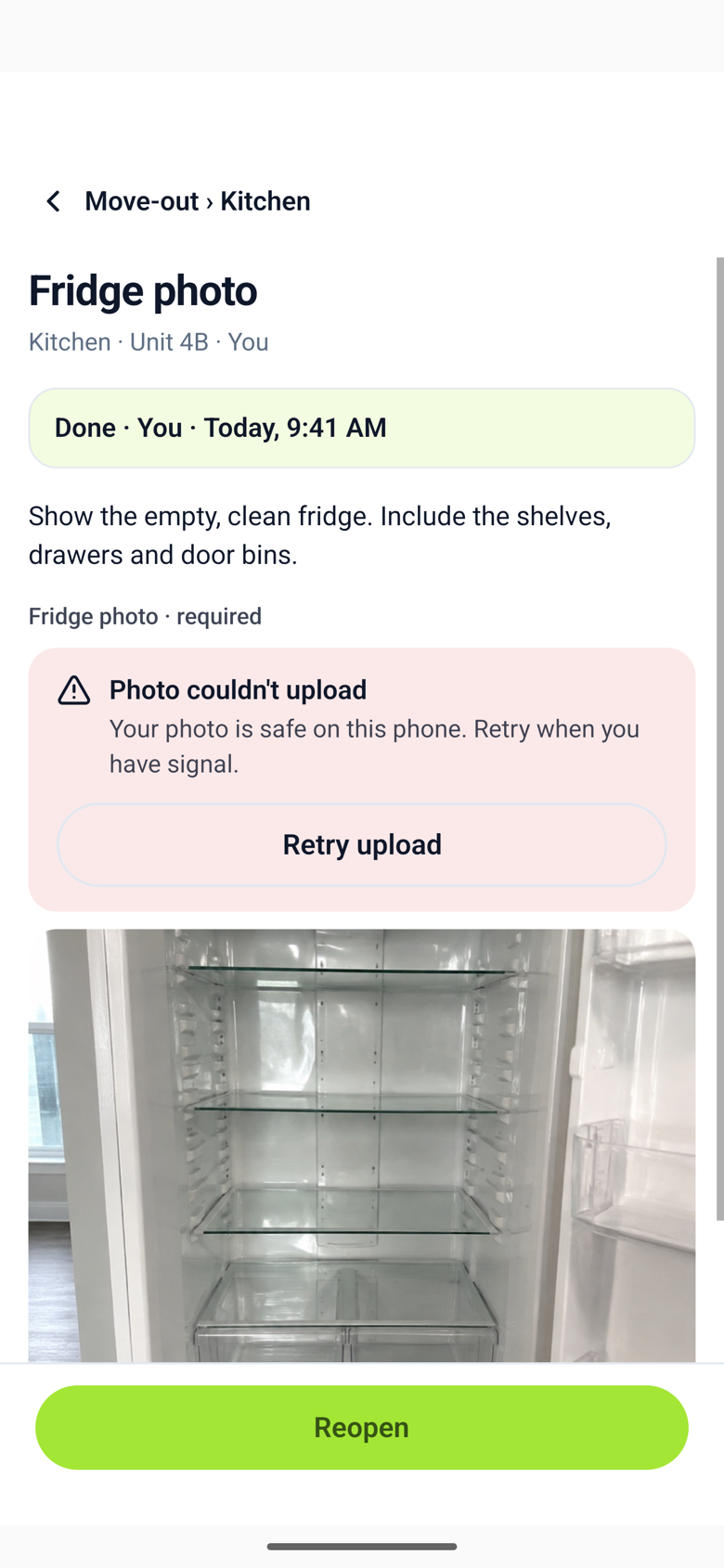
If a photo will not upload
Sometimes an upload fails: a weak signal, or a connection that dropped half way. The step says Photo couldn't upload and offers Retry upload. Your photo is safe on your phone the whole time, and ChecklistSquad keeps trying on its own too. You only need Retry if you want it to try now.
Signing out deletes photos that have not uploaded yet from this phone. The app warns you before you sign out if any are waiting.
On the completed checklist
A finished checklist keeps every photo with the step it belongs to, with who added it and when. Open a step to see its photos at full size. If a photo was still on someone's phone when the checklist was finished, the record says how many are still syncing, and fills in once they arrive.
What a photo is
Photos are stored privately for your organization. Only people who can see the checklist can see its photos, and each photo is shown through a link that expires. Photos are resized to about 1600 pixels on the long side before they upload, so they are quick to send and still clear enough to read a label.