Doing the work
Sign a step
Sign with your finger on a step that asks for a signature, see who signed and when, and know what the signature means.
On this page
A step can ask for a signature: a supervisor signing off a safety walk, a tenant signing for the keys, a driver confirming the vehicle. The template decides which steps ask, and the step's instructions say what you are confirming. Read them before you sign; the signature means you did.
Sign
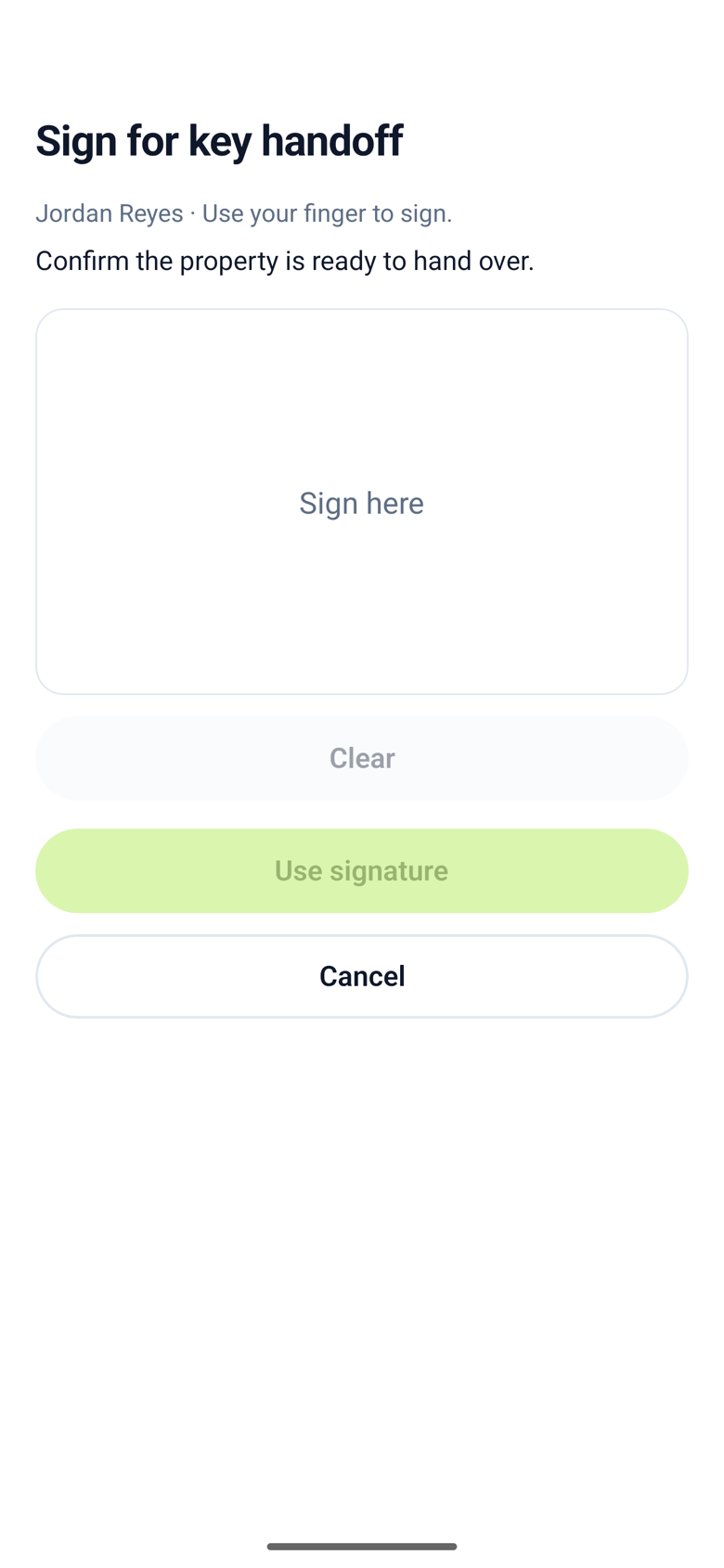
- On the step, tap Sign. A signing screen opens.
- Sign inside the box with your finger, or with a mouse or trackpad in a browser. Clear wipes it so you can start again.
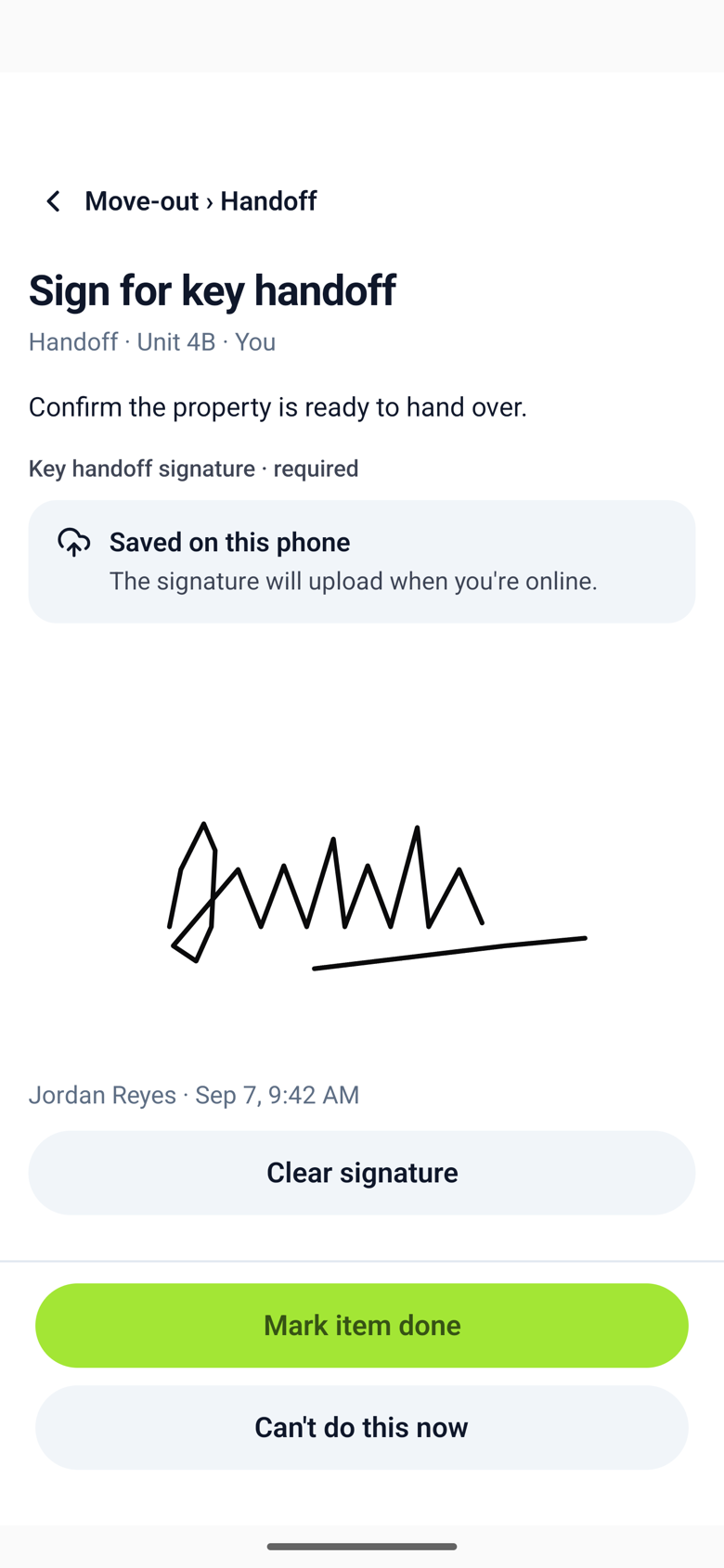
- Tap Use signature. The step shows your signature with your name and the time under it.
- Tap Mark item done.
To sign again, tap Clear signature on the step and sign once more. A step holds one signature.
What is recorded
ChecklistSquad keeps the strokes you drew, the name of the account that was signed in, the time on the phone when you signed, and the time the signature reached the server. The signature is kept with the step on the completed checklist, the same way a photo is, and only people who can see the checklist can see it.
A signature stands for the person who is signed in. If someone else needs to sign, such as a customer, hand them the phone for that step; their name is not recorded, but the step's instructions and your account are.
Signatures work offline the same way photos do: the step is done at once, and the signature uploads when you have signal.